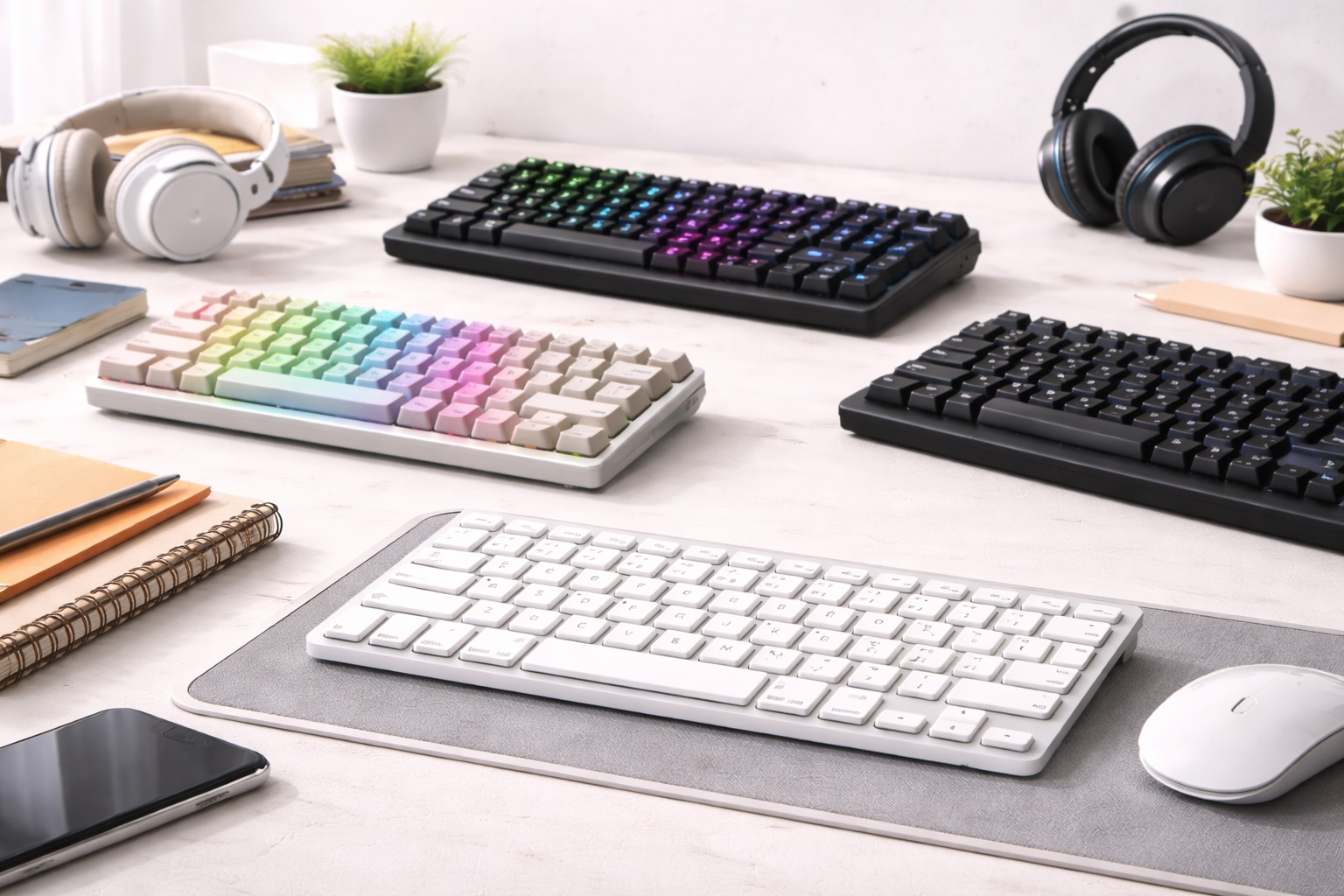
Best Keyboard for Beginners in 2026: The Easiest Way to Fast and Smooth Typing
If you've recently upgraded your home office or started a new job, the simple "pack-in" keyboard that came with your computer probably feels plastic, loud, or "mushy." But for a beginner, words like "Mechanical Switches," "Actuation Force," and "Hot-Swappable" can be overwhelming. The **best keyboard for beginners** strips away the complexity. It must be **Easy to Use** (plug it in and it works), **Highly Reliable** (it doesn't skip letters), and **Comfortable** (it supports your wrists for hours of typing without a complicated setup).
We've selected the most "stress-free" keyboards of 2026. These models were chosen because they work effortlessly with both Windows and Mac, require no special software to look good, and come from trusted brands with excellent durability. Whether you're a student, a senior, or a new remote worker, these are the best "hassle-free" picks for bringing speed and comfort to your desk.
Top 8 Best Beginner-Friendly Keyboards (Detailed Reviews)
1. Logitech Signature K650 – The All-Rounder's Best Choice
Logitech is the most trusted name in beginner tech for a reason. The K650 is designed to be the "perfect" first keyboard. It features a **Built-in Deep Cushion Palm Rest** that supports your wrists, preventing the fatigue that comes from cheap flat keyboards. The keys are "Whisper Quiet," so you won't bother anyone in your house or office. It is "Plug-and-Play," meaning you just plug in the small USB receiver or connect via Bluetooth, and it works instantly. It features a battery that lasts for up to 3 years, making it the most reliable tool on the market.
- Pros: Most comfortable built-in wrist rest, silent typing, 3-year battery life, very affordable.
- Cons: Plastic build (not aluminum), non-detachable wrist rest (takes up more desk space).
Who should buy this: Remote workers and students who want maximum comfort and zero technical setup.
2. Apple Magic Keyboard – The Ultimate Simplicity for Mac Designers
For Apple users, the Magic Keyboard is the definition of "it just works." It is remarkably thin and uses a specialized "Scissor Mechanism" that provides a crisp, fast typing feel. For a beginner, its best feature is its **Tidy 100% Integration**—there is no software to install and no pairing code to type. It is also incredibly light and takes up very little space. For 2026, it features a USB-C charging port and a battery that lasts for over a month on a single charge. It’s finished in a beautiful aluminum that matches your Mac perfectly.
- Pros: Thinnest highnd keyboard, perfect Apple ecosystem integration, very light, consistent feel.
- Cons: No backlighting, no multi-device pairing (one device at a time).
Who should buy this: iPad and Mac users who want a highnd, minimalist keyboard that requires zero learning curve.
3. Keychron K2 Pro – The "Starter" Mechanical Experience
Keychron has revolutionized the keyboard world by making "Mechanical" keyboards easy to use. The K2 Pro features the tactile "click" that feels so much better than standard plastic keyboards. For a beginner, its best feature is that it is **Pre-Built and Hot-Swappable**. You don't need to know anything about technology to use it—it just works out of the box. But if a key ever breaks, you can just pop it out and put a new one in with a simple tool. It is 100% compatible with both Mac and Windows layouts.
- Pros: Incredible tactical typing feel, customizable lighting, highly durable, Mac/Win compatible.
- Cons: Higher "profile" might require a wrist rest for some, uses more power (recharge weekly).
Who should buy this: Tech-savvy students and writers who want a "heavynd" professional typing experience.
4. Microsoft Designer Compact Keyboard – The Slick Minimalist
Microsoft builds their "Designer" keyboard for those who want a "modern" desk look. It is very slim and features dedicated shortcut keys for "Emoji" and "Screen Snipping," which are lifend-savers for researchers. For a beginner, its best feature is **Multi-Device Pairing**—you can press one button to switch from typing on your laptop to typing a text on your phone. It is tiny, professional, and fits perfectly in a laptop bag. It’s a sub-$100 tool for those who prioritize a "Clean" setup.
- Pros: Very thin and stylish, dedicated shortcut keys, multi-device pairing, very affordable.
- Cons: Uses coin batteries (not rechargeable), no backlighting.
Who should buy this: Marketing professionals and Windows enthusiasts who want a sleek, modern upgrade.
5. Logitech MX Keys Mini – The "Pro" Upgrade
While a bit more expensive, the MX Keys Mini is the "Gold Standard" for office work. It features "Spherically Dished" keys that match the shape of your fingertips, making you type faster and with fewer mistakes. For a beginner, its best feature is the **Hand-Detection Backlighting**—the keys light up as your hands approach and turn off when you leave. You never have to hunt for the power button. It pairing with 3 devices and is finished in a heavynd aluminum that feels extremely premium.
- Pros: Best-in-class low-profile feel, smart backlighting, multi-device pairing, luxury build quality.
- Cons: Higher price tag, no height adjustment (fixed angle).
Who should buy this: Serious professionals who spend 8+ hours a day typing and want the best possible investment for their hands.
6. Amazon Basics Wireless Keyboard – The Emergency Backup
If you just want the absolute minimum price for a functioning tool, the Amazon Basics keyboard is no-frills and nearly indestructible. It is a fullnd-size keyboard (includes a number pad) and comes with a small USB receiver that works instantly with any Windows PC. It has been tested billions of times and is known for its stability. While it feels "plastic," it is a perfectly functional tool for a child's school computer or as an emergency spare.
- Pros: Cheapest functional pick, durable construction, includes a number pad, very simple setup.
- Cons: "Basic" office look, loud typing sounds, no backlighting.
Who should buy this: As an emergency spare or for someone who wants to connect basic items for the absolute lowest price.
7. Microsoft Ergonomic Keyboard – The Health Choice
If your wrists often hurt after a day of work, the Microsoft Ergonomic is the industry standard. It features a "Split" design and a curved shape that keeps your arms in a natural position. For a beginner, its best feature is the **Massive Attached Palm Rest**—it is covered in a soft, premium fabric that feels much better than hard plastic. It is a "Wired" keyboard (no batteries to worry about), making it the most reliable health tool for an intensive home office setup.
- Pros: Best for wrist health, huge cushioned palm rest, dedicated number pad, indestructible.
- Cons: Very large (takes up a lot of desk space), requires a cable to be plugged in.
Who should buy this: Home-office workers who type more than 4,000 words a day and want to avoid carpal tunnel syndrome.
8. Royal Kludge RK61 – The Fun "Mini" Choice
For under $50, the RK61 is the ultimate "Compact" choice for a beginner. It features a 60% layout, meaning it is very small and leaves massive room for your mouse. For a beginner, its best feature is the **Colorful Backlighting**—it has over 15 different "Patterns" that make your desk look like a pro-gamer's setup. It can connect via 2.4GHz wireless, Bluetooth, or cable. It is a durable, fun, and very affordable way to try a highnd mechanical keyboard.
- Pros: Very compact (60% layout), cool lighting effects, multiple ways to connect, very affordable.
- Cons: Learning the "60%" layout (no arrow keys) takes a week, plastic build.
Who should buy this: Students and gamers who want a "Cool" look and more desk space for a low price.
Buying Guide: A Beginner’s Vocabulary
You don't need to be an expert, but knowing these four terms will help you buy the right keyboard:
1. "Switch" Type (Mechanical vs. Membrane)
* **Mechanical:** Each key has its own metal spring and switch. Provides incredible "Click" and feedback. Lasts for 10+ years. * **Membrane:** Uses a rubber pad. Very thin, light, and quiet. Standard for most laptops and budget boards.
2. "Form Factor" (Full Size vs. TKL)
* **Full Size (100%):** Includes the Numpad on the right. Best for accounting. * **TKL (Tenkeyless / 75%):** Removes the Numpad. This is better for most people because it lets your mouse sit closer to your body, reducing shoulder pain.
3. "Hot-Swappable"
This means you can pull the buttons out and put new ones in without needing to buy a new keyboard. For a beginner, this is a great "Safety Net"—if one key ever stops working, you can fix it for $1 rather than throwing the whole $80 keyboard away.
4. "Wrist Rest"
A good beginner keyboard should either have a builtnd-in wrist rest (like the Logitech K650) or be "Low-Profile" (like the Apple Magic). If a keyboard is tall and has no wrist rest, your hands will be bent backwards all day, which causes long-term pain. Always prioritize **wrist comfort**!
FAQ: Expert Tips for New Keyboard Users
Can I use my Windows keyboard with my Mac?
Yes. 99% of modern keyboards work with both. However, your "Windows" key will act as the "Command" key. Many highnd boards (like Keychron or Logitech) come with extra "Alt" and "Cmd" buttons in the box that you can swap physically!
Why do some keys feel "Mushy"?
This is common in cheap Membrane keyboards. It means the rubber padding inside is of low quality. To avoid this, look for keyboards that mention "Scissor Switches" (like Apple) or "Mechanical Switches" (like Keychron). These use actual mechanisms to ensure every press is crisp and clear.
Is "Bluetooth" or a "USB Receiver" better for wireless?
A **USB Receiver** (the tiny plug) is usually more stable. It works before Windows even starts and never "lags." **Bluetooth** is better because you don't need to waste a USB port and you can connect to your phone or tablet. For a home office, a USB receiver is the "safer" pick.
Do I need to clean my keyboard?
Yes! Keyboards are magnets for skin oils and crumbs. Every week, use a **damp microfiber cloth** to wipe the keys. Every month, turn the keyboard upside down and gently shake it to remove dust. If you have a mechanical board, using a "Keycap Puller" allows you to deep-clean the whole thing.
How long will these keyboards last?
A highnd mechanical keyboard (like Keychron) can last for **15+ years**. A membrane keyboard (like Logitech) usually lasts for **3 to 5 years** of heavy use. Because the keys aren't "integrated" like on a laptop, a desk keyboard is a great investment in the longevity of your setup.
Final Verdict: The Best Winner for Beginners
- The Comfort Champion: The Logitech Signature K650 for its builtnd-in wrist rest and silent keys.
- The Style King: The Apple Magic Keyboard for being the thinnest and simplest tool for Mac users.
- The Feature Pro: The Keychron K2 Pro for its incredible "mechanical" feel and customization.
Your "Type" is your voice in 2026. By choosing a simple, reputable keyboard, you're simplifying your life, protecting your health, and making your daily work much more comfortable. Type your way to success!