Best USB Hub for Beginners in 2026: The Easiest Way to Connect Everything
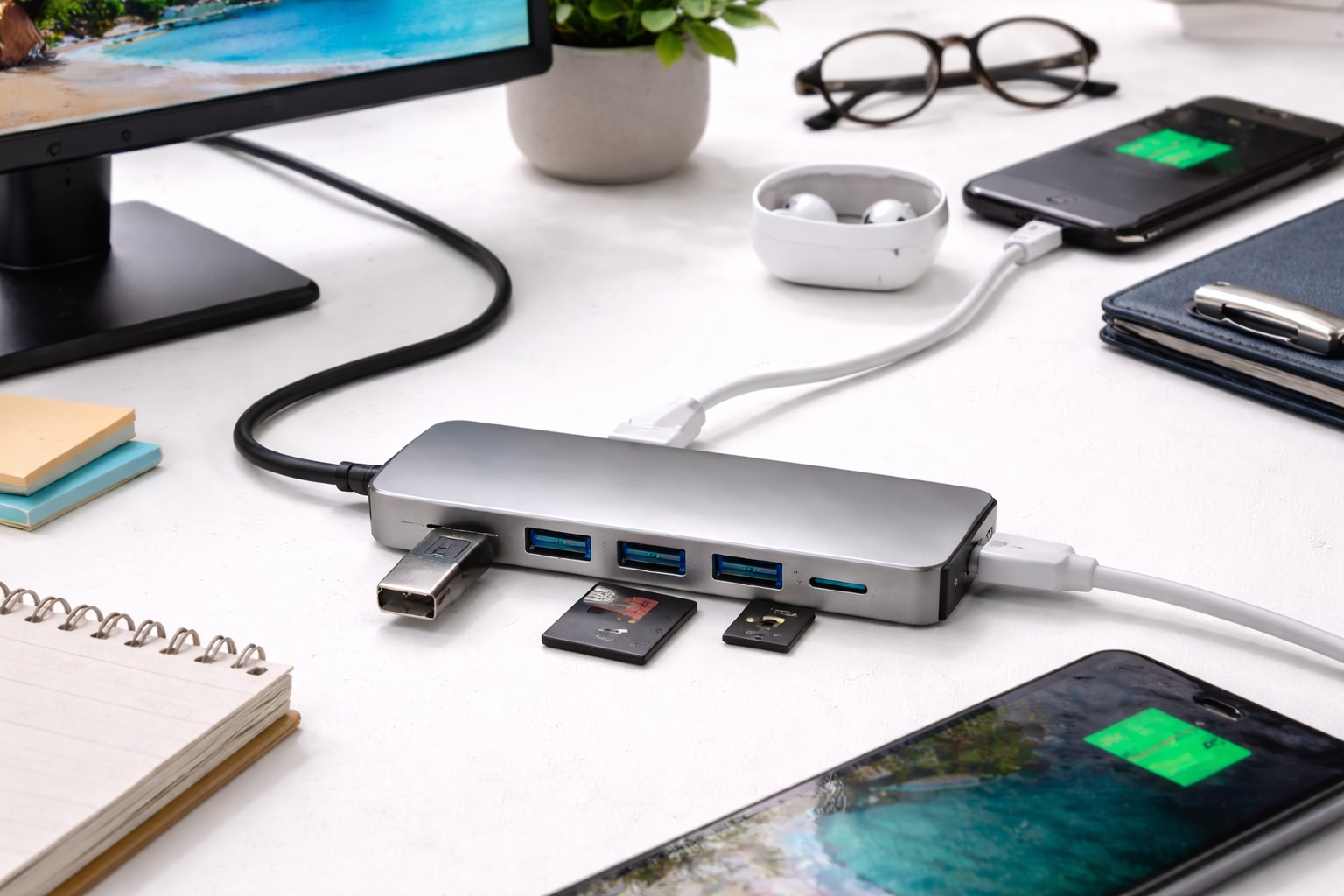
If you've recently bought a new laptop, you've probably noticed it doesn't have many ports. Where do you plug in your mouse? Your printer? Your external hard drive? This is where a USB-C hub comes in. But for a beginner, words like "100W Power Delivery," "4K@60Hz," and "Thunderbolt compatible" can be confusing. The **best USB hub for beginners** strips away the complexity. It must be **Plug-and-Play** (you plug it in and it works), **Highly Reliable** (it doesn't disconnect or get too hot), and **Multi-Functional** (giving you exactly the ports you need without making things difficult).
We've selected the most user-friendly USB hubs of 2026. These models were chosen because they work effortlessly with both Windows and Mac, require no special software to install, and come from trusted brands with excellent customer support. Whether you're a student, a senior, or a new home-office worker, these are the best "hassle-free" picks for connecting your life.
Top 8 Best Beginner-Friendly USB Hubs (Detailed Reviews)
1. Anker 332 USB-C Hub (5-in-1) – The Ultimate Beginner Base
If you just need a few basic ports, the Anker 332 is the perfect "First Hub." It provides an HDMI port for your TV or monitor, two regular USB ports (USB-A) for your mouse and keyboard, and a USB-C data port. It’s about the size of a candy bar and features a simple, durable plastic build. It’s remarkably easy to use: just plug it into your laptop's USB-C port, and everything you plug into the hub works instantly. For under $25, it’s a high-quality, reliable tool from a brand everyone trusts.
- Pros: Easiest setup, very affordable, includes all the basic ports, trusted Anker reliability.
- Cons: No SD card slots or Ethernet, plastic build isn't for heavy travel.
Who should buy this: Students and home users who just need to connect a mouse, keyboard, and an extra screen.
2. Belkin Connect 7-in-1 USB-C Hub – The Pro-Level Simple Hub
Belkin’s products are a staple in Apple stores because they follow strict quality guidelines. This 7-in-1 hub is purely about reliability. It offers everything the Anker 332 has, plus **SD Card Slots** (for photos) and "Power Delivery" (so you can charge your laptop through the hub). It features a "Soft-Touch" cable that is much more flexible than most, making it easier to arrange on your desk. It’s a bit more expensive than the Anker, but its 2-year warranty and "Apple-Grade" quality make it a very safe investment for a beginner.
- Pros: Very high reliability, includes SD slots for photos, flexible and durable cable, 2-year warranty.
- Cons: Costs more than budget brands, slightly larger than others.
Who should buy this: Business users and photographers who want a simple, high-quality hub from a top-tier brand.
3. Baseus 7-in-1 USB-C Hub with Status LED – The Visual Helper
Baseus has created a "smart" hub for under $35. What makes it great for beginners is the **Status LED indicator** on the top. It glows to let you know the hub is properly connected and working. It provides 4K HDMI, SD/MicroSD slots, and three regular USB ports. It also supports 100W Power Delivery, so you can charge your laptop while you work. It’s finished in a high-density aluminum that keeps it cool and looks very modern. It’s a lot of features for a very low price.
- Pros: Very affordable, includes status lights, 100W charging support, sleek design.
- Cons: 4K HDMI is limited to 30Hz (standard speed), plastic end-caps.
Who should buy this: Budget-conscious users who want a lot of ports and like having a visual light that tells them everything is connected.
4. Microsoft USB-C Travel Hub – The Simple Windows Pick
Microsoft builds their travel hub to be the "default" choice for Surface and Windows users. It features a very clean, circular design. What beginners love is that the **cable wraps around the hub** and tucks away when you aren't using it—so there are no dangling wires in your bag. It features HDMI, VGA (for old office projectors), Ethernet, one USB-A, and one USB-C port. It’s a no-nonsense, brand-name tool that works perfectly the first time you plug it in.
- Pros: Tidy cable management, VGA port for older monitors, very clean design, reliable on Windows.
- Cons: Only one USB-A port (can't connect a mouse and keyboard at once), expensive.
Who should buy this: Business travelers who use Windows laptops and need to connect to old projectors or office networks.
5. uni USB-C Hub (6-in-1) with Braided Cable – The "Tough" Choice
If you're worried about breaking your gear, the uni 6-in-1 is for you. It features a heavy-duty aluminum shell and a **Braided Nylon Cable**—it feels more like a climbing rope than a computer wire! It’s designed to be dropped and bent without breaking. It offers HDMI, SD card slots, and two USB-A ports. For a beginner, its best feature is its "Universal Compatibility": it works perfectly with Windows, Mac, iPad, and even Android phones with zero setup.
- Pros: Near-indestructible braided cable, rugged build, great heat management, very affordable.
- Cons: Standard features only, no Ethernet.
Who should buy this: Students, outdoor enthusiasts, and anyone who is "rough" on their tech gear.
6. JLab Go Wireless Mouse & USB Hub Kit – The Integrated Kit
Sometimes the easiest way to start is to buy a "system." JLab offers a combined hub and mouse kit. The hub itself is a simple "stick" design with three USB-A ports and HDMI. It’s designed specifically to work with their wireless mice (using a shared receiver). For a beginner, this is brilliant because it reduces the number of things you have to buy and "pair." It’s affordable, simple, and the brand is very well known for their "easy-to-use" philosophy.
- Pros: Part of a simple "easy-to-use" ecosystem, very affordable, stable connection.
- Cons: Basic features only, plastic build.
Who should buy this: New computer owners who want to buy a mouse and hub at the same time and avoid any setup stress.
7. Amazon Basics 7-in-1 USB-C Hub – The Simple Survivor
If you just want the absolute cheapest reliable option, the Amazon Basics hub is the one. It’s no-frills and nearly indestructible. For around $20, it offers HDMI, SD slots, and two USB-A ports. It has been tested millions of times and is known for its stability. If you're a beginner who just needs to "get it done" without thinking about it, this is a "set it and forget it" tool that is perfect for a spare laptop or a child's computer.
- Pros: Cheapest reliable pick, durable plastic, standard simple connection, easy to replace.
- Cons: Gets a bit warm, 4K video is basic 30Hz, nothing fancy.
Who should buy this: As an emergency spare or for someone who just wants to connect basic items for the lowest price.
8. HyperDrive SLIM 8-in-1 – The "Grow-with-You" Hub
While a bit more expensive, the HyperDrive SLIM is the hub you buy if you don't want to buy another one for 5 years. It is ultra-thin and features a "Flip-open" Ethernet port—so you can connect to high-speed office internet when the Wi-Fi is bad. It has all the ports: HDMI, SD, and three USB-A ports. It’s finished in a high-end matte aluminum. For a beginner, it’s great because it matches the look of a premium laptop and offers every port you'll ever need as you learn more about your computer.
- Pros: Thinnest full-feature hub, includes Ethernet for stable internet, high-quality build.
- Cons: Most expensive on our list, can get hot because it is so thin.
Who should buy this: Design lovers and future power users who want a "lifetime" hub that looks and feels premium.
Buying Guide: A Beginner’s Vocabulary
You don't need to be an expert, but knowing these four things will help you buy the right product:
1. "Power Delivery" (PD): Charging through the Hub
If your laptop only has ONE USB-C port, the hub will "take" that port. How will you charge the laptop? Look for a hub with **"Power Delivery (PD)."** This allows you to plug your laptop's charging cable into the hub, which then sends the power into the laptop. This is the single most important feature for a beginner to have!
2. "USB-A" vs. "USB-C" (The Port Mix)
* **USB-A:** These are the "old-school" rectangular ports. You need these for 90% of mice, keyboards, and printers. * **USB-C:** These are the "new-school" small oval ports. You need these for new phones and fast external drives. For a beginner, a hub with **Two or Three USB-A ports** is usually the most important thing.
3. SD Card Slots: For your Camera
If you enjoy photography, look for a hub with an **SD Slot** and a **MicroSD Slot**. This allows you to slide the card out of your camera or phone and directly into the hub to see your photos on the big screen. It’s much faster than using "Cloud" syncing!
4. 4K HDMI: Connecting to your TV
If you want to watch movies from your laptop on your big TV, you need the **HDMI port**. All hubs on this list have one. Just plug a standard HDMI cable into the hub and your TV—your computer screen will instantly appear on the television! (Tip: Press "Win+P" on Windows to choose how it displays).
FAQ: Expert Tips for New Hub Users
Why is my mouse "skipping" or lagging when plugged into the hub?
This is a common issue! The electronic signals in the hub can sometimes interfere with a wireless mouse plug. To fix this, use a **Bluetooth mouse** or use a small USB "extension cable" (about 4 inches long) to move the mouse plug away from the hub.
Is it safe to leave the hub plugged in overnight?
Yes, but it’s not recommended if your laptop isn't plugged into the wall. The hub "uses" a tiny amount of your laptop's battery power just to stay awake. If you leave it in for 3 days without the charger, your laptop might be dead when you return!
Why does the hub feel "Hot" when I touch it?
Don't worry! Aluminum hubs (like Anker or Satechi) are designed to be "Heat Sinks." They pull the heat away from the sensitive parts inside and release it into the air. It’s actually a sign the hub is working correctly to keep your electronics safe.
Can I use this hub to charge my phone?
Yes, but it's usually **Slow.** Most hubs are designed for "Data" (moving files) and can only provide a small amount of electricity. It will charge your phone eventually, but it won't be as fast as plugging your phone directly into the wall.
Do I need to install "Drivers" or Apps?
No. 99% of USB hubs are **"Plug-and-Play."** The second you plug it in, your computer automatically knows what it is and starts using it. If a hub asks you to download "special software," be careful—reputable brands don't require any extra downloads.
Final Verdict: The Best Winner for Beginners
- The Best Overall: The Anker 332 for its simplicity, reliability, and great price.
- The Quality Winner: The Belkin Connect 7-in-1 for its premium build and 2-year warranty.
- The Feature Value: The Baseus 7-in-1 for including every port you'll need for a great price.
Expanding your laptop's potential shouldn't be stressful. By choosing a simple, reputable USB-C hub, you're simplifying your life and making your computer much easier to use. Connect your mouse, back up your photos, and enjoy your tech!