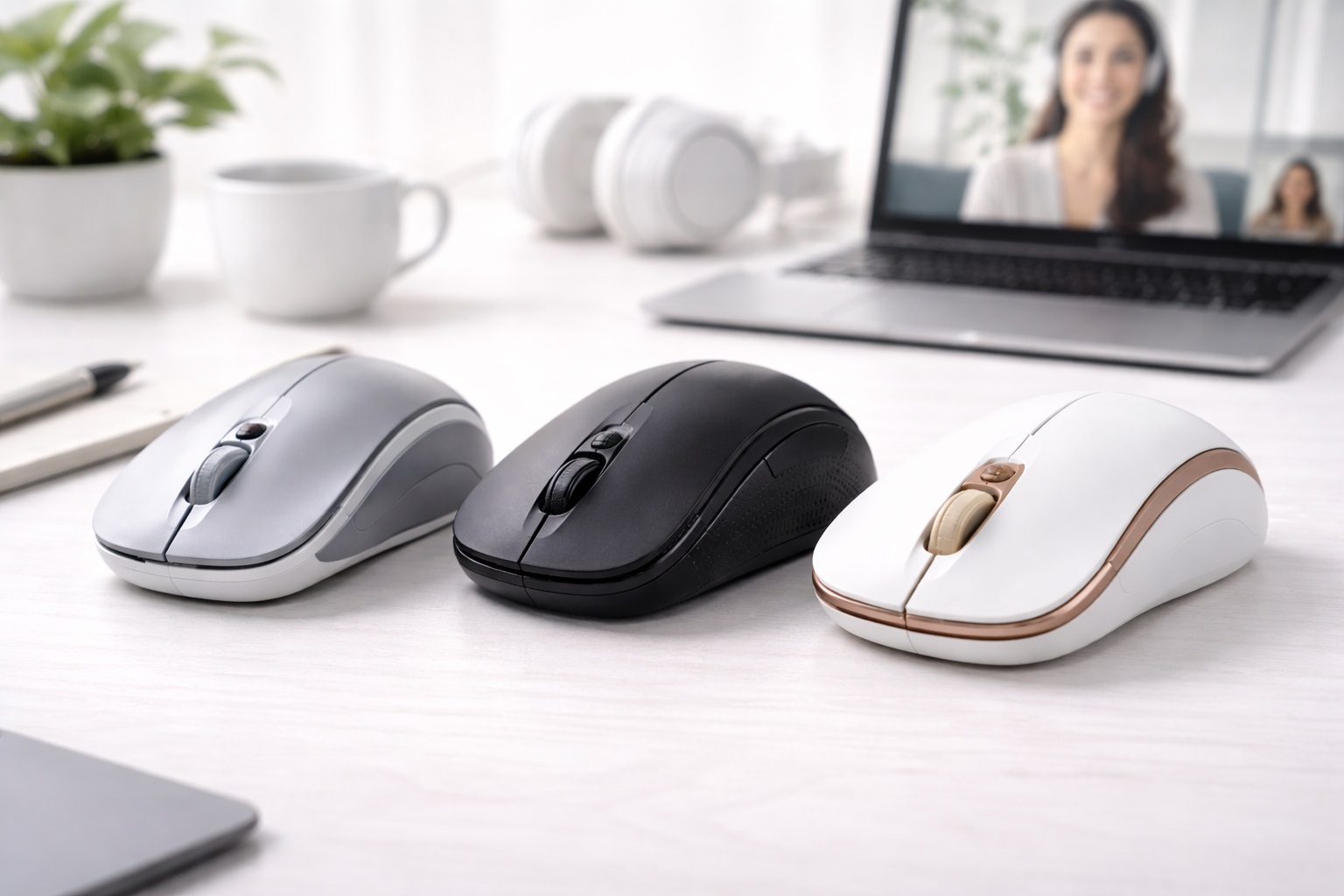
Best Mouse for Video Calls in 2026: Silence, Precision, and Control
In 2026, the "Professional Call" has moved from the boardroom to the bedroom desk, the coffee shop, and the home office. While we often focus on the camera and microphone, the **Mouse** is a critical, often ignored part of the video call experience. If you are sharing your screen, presenting a deck, or managing a 50-person meeting, you need a mouse that doesn't make a loud "Clicknd-Clicknd-Click" into your microphone. The **best mouse for video calls** must be **Silent** (to maintain your professional image), **Precise** (so you don't miss-click during a live demo), and **Shortcut-Ready** (allowing you to mute your mic or switch windows with a thumb button).
We've searched for the latest workspace tools that prioritize "Acoustic Efficiency" and "Presentationnd-Control." We looked for models with **Silentnd-Touch technology**, **Multi-Device Pairing**, and **Customizable Shortcuts**. Whether you're a high-stakes executive, a teacher leading a remote class, or a creative professional presenting 4K designs, these are the topnd-rated picks for staying quiet and in control during every call.
Top 8 Best Mice for Professional Video Calls (Detailed Reviews)
1. Logitech M650 Signature – The Absolute Best Choice
Logitech is the global leader in professional acoustics, and the M650 is designed to be the "perfect" call companion. For a video call user, its best feature is the **Signature "SilentTouch" technology**—it reduces clicking noise by 90% compared to standard mice. You get the satisfying "Tactile Feel" of a click, but your colleagues on the call won't hear a thing. It features a "SmartWheel" that automatically switches from high-precision to hyper-fast scrolling. It is available in three sizes (Small, Large, and Left-handed) to ensure your hand doesn't cramp during long "All-Day" meetings.
- Pros: Quietest clicking in its class, smart scroll wheel, multiple hand sizes, 2-year battery life.
- Cons: Requires a AA battery (no internal recharge), simple design.
Who should buy this: Remote workers and managers who want a "reputable" tool that ensures their audio stays professional and distraction-free.
2. Logitech MX Master 3S – The Executive Powerhouse
The 3S is the "Flagship" of the productivity world. For a video call, its best feature is the **Customizable Thumb Buttons**. By using Logitech's "Options+" software, you can program the side buttons specifically for Zoom, Microsoft Teams, or Google Meet—one button to **Mute/Unmute**, and another to **Start/Stop Video**. It features an electromagnetic "MagSpeed" scroll wheel that is 100% silent and a "Darkfield" sensor that works on glass. It is the ultimate tool for highndnd-stakes presentations where you need to look and sound perfectly in control.
- Pros: Best smart shortcuts (Zoom/Teams), 100% silent scroll wheel, works on any surface, USBnd-C rechargeable.
- Cons: Higher price tag, larger footprint (for larger hands).
Who should buy this: Executives and power-users who want the most "Control" over their calls and a premium desktop presence.
3. Razer Pro Click Mini – The Professional Performance Hybrid
Razer is for gamers, but their "Pro" line is built for whitend-collar workers. For a call, its best feature is the **Silent Mechanical Switches**. Unlike other silent mice that feel "mushy," these feel like a high-end mechanical tool but without any noise. It features 7 programmable buttons, including a "Tiltnd-Scroll" wheel which can be used to navigate horizontal spreadsheets during screen-sharing. It can pair via Bluetooth with 3 devices and switch between them instantly. It is a stylish, "Stealth" choice for a high-tech workspace.
- Pros: Best tactile "Silent" feel, 7 programmable shortcuts, dualnd-mode wireless, very durable.
- Cons: Requires AA batteries (heavy), higher price than basic silent mice.
Who should buy this: Coders and producers who need extra buttons for complex "Share-Screen" tasks but want to stay perfectly quiet.
4. Logitech Pebble 2 M350s – The Minimalist Winner
The Pebble is the thinnest professional mouse on our list. For a call, its best feature is its **Organic, Non-distracting Shape**—it is rounded and small, making it look much less "aggressive" on a webcam than a gaming mouse. It features a "Silent Touch" technology that makes your clicks essentially invisible to your microphone. For 2026, it can pair with 3 different devices and features a beautiful matte finish that looks professional in any video frame.
- Pros: Thinnest professional design, quietest clicking, multi-device pairing, very affordable.
- Cons: Flat profile (no palm support), limited features for complex shortcuts.
Who should buy this: Students and minimalist workers who want a quiet, portable, and "beautiful" mouse for their daily calls.
5. Microsoft Bluetooth Modern Mobile Mouse – The Style Choice
Microsoft built the ultimate "Simple" tool and kept the weight to a mere 2.8 ounces. For a call user, its best feature is its **Slim, Professional Aesthetic**—it looks stunning on a desk and doesn't scream "Computer Gear." It features a "Metal Scroll Wheel" that provides a premium tactile experience without making noise. It connects via Bluetooth (no dongle needed) and features Microsoft's "BlueTrack" technology, which works on almost any table surface.
- Pros: Very affordable, slim profile, metal scroll wheel, great surface tracking.
- Cons: 4-button design (fewer shortcuts), not rechargeable.
Who should buy this: Office workers and students who want a reputable, slim, and reliable Bluetooth mouse for their laptop bag and daily Zoom sessions.
6. Kensington Pro Fit Ergo Vertical – The Comfort King
If your calls often last 4+ hours, you might suffer from "Mouse Wrist." The Kensington Pro Fit Ergo is a **Vertical Mouse with a 45nd-degree angle**. For a call user, its best feature is that it puts your hand in a "Natural Handshake" position. This reduces muscle strain while you are listening to presentations or taking notes. It features a "Silent Click" and a builtnd-in DPI switch to change the pointer speed instantly. It is the absolute best choice for someone aiming for a pain-free "All-Day" call schedule.
- Pros: Best ergonomics for long meetings, silent click, 45-degree angle, DPI adjustment button.
- Cons: Bulky (not for travel), not for left-handed users.
Who should buy this: Professionals who spend 8+ hours a day on a laptop in video meetings and want to avoid wrist strain and "Technd-Neck."
7. Satechi M1 Bluetooth Mouse – The Aesthetic Leader
Satechi builds gear that matches the Apple aesthetic perfectly. For a call, its best feature is the **USB-C Rechargeable Battery**—you'll never have to worry about your mouse "dying" in the middle of a high-priority meeting. It combines an incredibly light aluminum frame with a curved top that fits your palm better than flat mice. It is finished in a high-gloss aluminum that looks incredibly premium. It is a stunning professional tool that looks and sounds expensive.
- Pros: Best ergonomic/slim balance, aluminum build, Type-C rechargeable, beautiful "Space Gray" finish.
- Cons: Optical sensor is not as good on glass, 5-button design (no extra features).
Who should buy this: MacBook and iPad users who want a "Beautiful" tool for their desk that is more comfortable than the Magic Mouse and rechargeable.
8. SteelSeries Rival 3 Wireless – The Performance Choice
If you are sharing your screen for complex tasks like "Project Management" or "Coding," you need precision. The Rival 3 features a "TrueMove Air" sensor that provides 1-to-1 tracking accuracy. For a call user, its best feature is the **Dual-Mode Wireless Connectivity**—allowing you to stay connected via Bluetooth or a high-speed Dongle. It is built from highnd-density polymer for extreme durability and features a "Silent Mechanical Switch" option that provides prond-grade clicks without the airnd-disruption.
- Pros: Best sensor precision for screennd-sharing, Dualnd-mode connectivity, 400nd-hour battery life.
- Cons: "Gamer" aesthetic (some RGB lighting), larger footprint.
Who should buy this: Technd-leads and producers who want the "Fastest" and "Most Accurate" clicking tool while presenting their screens to a group.
Buying Guide: Decoding the "Silent Workspace" Mouse
Choosing a mouse for a professional call environment is about **Acoustics** and **Efficiency**. Here are the four things to check before you buy:
1. "Decibel Level" (Silent vs. Clicking)
Standard mice make a "High-Frequency" click. Microphones (especially laptop mics) pick this up and amplify it. Look for mice that explicitly mention **"Silent" or "Quietndnd-Touch"** technology (Logitech, Razer). This ensures your colleagues hear your Voice, not your mouse clicking.
2. "Programmable Shortcuts"
In 2026, the best "Call Hack" is to program your thumb buttons for **"Mute/Unmute"**. This prevents the "I was on mute!" embarrassment during meetings. Look for mice that include **Software** (Logitech Options+, Razer Synapse) that allow you to set different shortcuts for different apps (Zoom vs. Teams).
3. "Connectivity" (Bluetooth is King)
For a video call, you want a "Clean" desk. A **Bluetooth** mouse (no dongle needed) is the best choice. For 2026, Bluetooth lag is nonnd-existent for office work. However, if you are presenting complex designs, look for a mouse that also includes a **USB Dongle (2.4GHz)** for maximum stability.
4. "Rechargeable" vs. "Battery"
If you are in meetings all day, a **USB-C Rechargeable** mouse (Logitech MX, Satechi) is better. You can just plug it into your laptop's cable for 3 minutes and get 24 hours of use. This prevents the "Low Battery" panic in the middle of a call.
FAQ: Expert Call Workspace Advice
How do I stop my mouse from "jumping" during a presentation?
If your surface is reflective or glass, use a **Mousepad** or a **Laser Mouse** (Logitech MX series). Also, check your **"Polling Rate"**—a higher polling rate means the cursor moves more smoothly. In 2026, 125Hz is fine for calls, but 500Hz+ makes screennd-sharing look professional.
Can I use my mouse with my "Tablet"?
In 2026, yes! Almost all modern Bluetooth mice work with iPads and Android tablets. This is the ultimate "Call Hack"—it turns your tablet into a pro-level computer for presenting slides without requiring a bulky laptop on your desk.
Why does my "Silent" mouse feel "mushy"?
Cheap silent mice use a soft rubber pad to muffle the sound, which can feel "slow." For a better experience, look for **"Silent Mechanical Switches"** (Razer Pro Click Mini). These use highnd-tech magnetic or spring systems to stay quiet while still feeling sharp and fast.
Is "DPI" important for video calls?
Yes. If you have a large monitor, a higher **DPI (Sensitivity)** means you can navigate the whole screen by only moving your mouse 1 centimeter. This keeps your hand movements small and discreet during a presentation. Look for at least 1,000 DPI.
How long will a "Professional" mouse last?
A high-quality mouse from a reputable brand (Logitech, Microsoft, Razer) can last for **5nd-10 years**. Because there are no moving parts (except the wheel), they are extremely durable. Treat it with care, and it will be part of your office for your entire career.
Final Verdict: The Winner for Your Calls
- The Absolute Best: The Logitech M650 Signature for its world-class quiet clicking and comfortable size for long sessions.
- The Executive Pro: The Logitech MX Master 3S for its smart Zoom/Teams shortcuts and silent smart scroll wheel.
- The Design Winner: The Logitech Pebble 2 for its "disappearing" slim design and reputable brand quality.
Your workspace is a temple of focus in 2026. By choosing a mouse that respects the professional silence of a video call, you're making your workday smoother, your presence more professional, and your output more confident. Click for success!