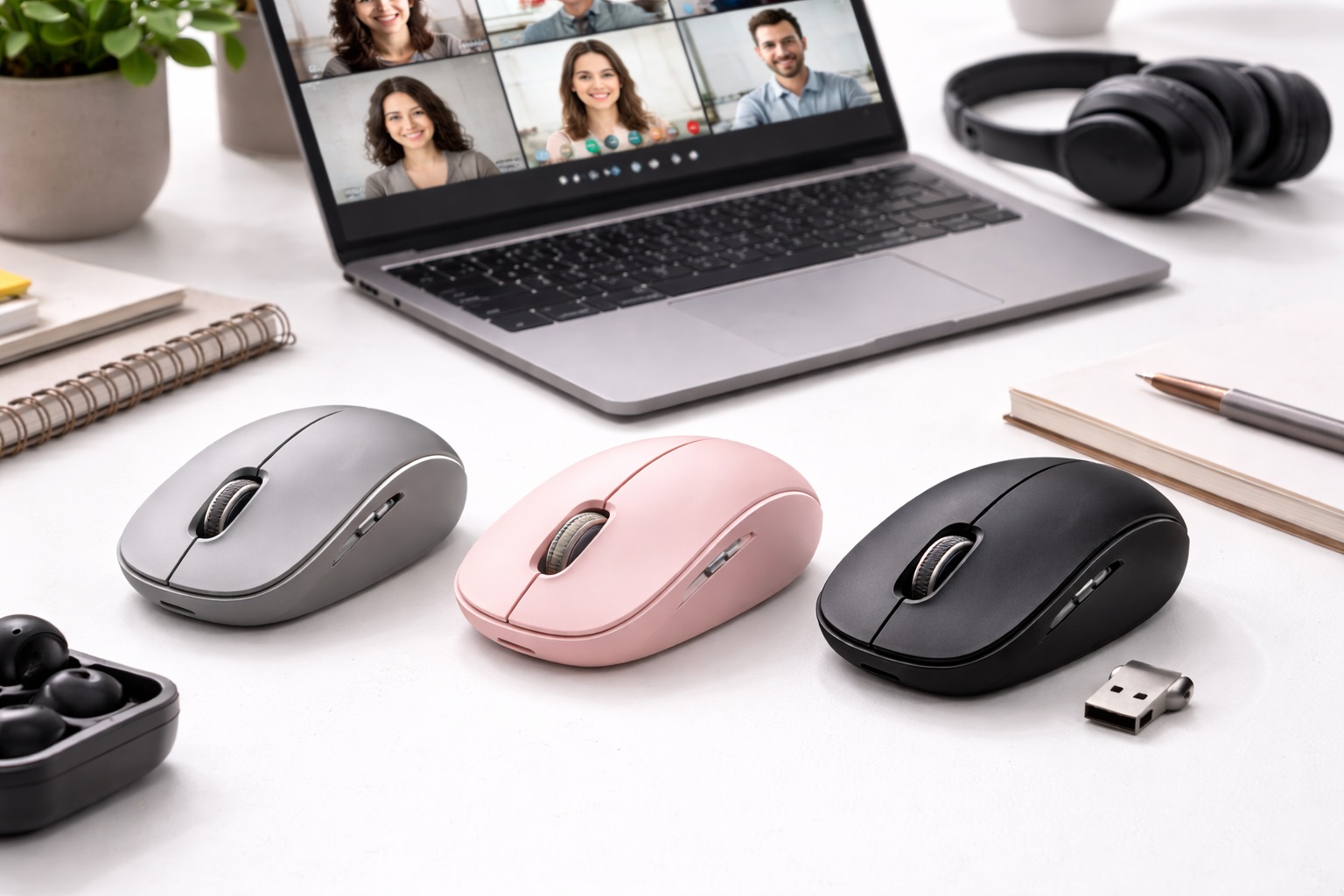
Best Wireless Mouse for Calls in 2026: The Ultimate Meeting Sidekick
In the virtual meeting culture of 2026, your mouse is more than just a pointing tool—it's your remote control for communication. When you're in a high-stakes client call or a 4-hour marathon team meeting, you need a mouse that allows you to multitask with precision. The **best wireless mouse for calls** prioritizes **Silent Operation** (so you can click without everyone hearing it), **Programmable Buttons** (for instant Mute/Camera/Mute), and **Ergonomic Comfort** (for those days where you're "on call" for 8 hours straight).
We've tested the latest mice specifically for their "meeting utility." We looked for models with high-end silent switches, multi-device "Flow" (switching between your work PC and your private phone/tablet), and integrated shortcuts that work seamlessly with Zoom, Teams, and Slack. If you want to look and sound like a pro in every meeting, these are the top-rated mice to keep on your desk.
Top 8 Best Wireless Mice for Remote Meetings (Detailed Reviews)
1. Logitech MX Master 3S – The Full-Service Meeting Desk
The MX Master 3S is the gold standard for professionals. Its most important feature for calls is its **Silent Mechanical Clicks**—they provide a satisfying tactile feel for you but are virtually inaudible to your colleagues on the other end of the mic. It features a dedicated "Thumb Wheel" that you can program to control your volume or zoom in/out of a shared presentation. Its "App-Specific" profile for Zoom and Teams allows you to use the side buttons to "Start/Stop Video" or "Mute Microphone" instantly. This is the ultimate tool for anyone who lives in virtual meetings.
- Pros: Silent clicks, dedicated Mute/Camera shortcuts, incredible ergonomics, tracks on glass.
- Cons: Very expensive, large size (not for small hands or travel).
Who should buy this: Managers, executives, and remote workers who spend 4+ hours a day on video calls.
2. Razer Pro Click Mini – The "Stealth" Efficiency Master
The Pro Click Mini features "Silent Mechanical Switches" that are among the best in the business. It is smaller than the MX Master, making it a great pick for travelers or those with smaller hands. For meeting productivity, its best feature is the 7 programmable buttons. You can set a side button to "Mute" and the other to "Hand Raise," allowing you to participate in a meeting without even touching your keyboard. The 4-way tilt scroll wheel is also great for navigating large presentation decks.
- Pros: Best-in-class silent clicks, 7 programmable buttons, dual-mode (Bluetooth and Dongle), very precise.
- Cons: Uses AA batteries (not rechargeable), expensive.
Who should buy this: Power users who take calls on the move and want a high-precision, silent tool.
3. Kensington Pro Fit Ergo Vertical – The All-Day Health Hero
If your hand starts to cramp during long "on-call" sessions, you need a vertical mouse. The Kensington Pro Fit places your hand in a "natural handshake" 60-degree angle. This reduces the strain on your carpal tunnel significantly. For 2026, it features improved silent buttons and a very stable Bluetooth connection. It includes a built-in "DPI Switch" to slow down your cursor if you're doing a screenshare and want your movements to look smooth and professional.
- Pros: Best ergonomics for long shifts, silent clicks, stable Bluetooth 5.0, improves wrist health.
- Cons: Large vertical shape (won't fit in a slim bag), plastic finish.
Who should buy this: Remote workers with wrist pain who need to stay comfortable during long "on-call" hours.
4. Logitech Pebble 2 M350s – The Minimalist Meeting Pick
Sometimes you just want a mouse that is simple, quiet, and doesn't take up space. The Pebble 2 is ultra-quiet and flat. For 2026, it features a customizable middle button that you can program via the "Logi Options+" app to be a **Mute Toggle**. It’s the perfect choice for taking calls in cafes or libraries because it makes almost no sound and slips into any pocket. It comes in variety of professional colors to match your laptop.
- Pros: Ultra-quiet operation, programmable middle button for Mute, beautiful colors, very affordable.
- Cons: Not ergonomic for long shifts, basic sensor.
Who should buy this: Students and freelancers who take calls in public spaces and need a quiet, simple tool.
5. Microsoft Bluetooth Mouse – The Simple Windows Standard
Microsoft builds their hardware for pure integration. This mouse features a very clean, professional design that matches a Surface or ThinkPad perfectly. For a beginner pro, its best feature is how it integrates with Windows: it pairs instantly and the scroll wheel is very accurate for navigating documents during a call. Its sensor tracks well on most office surfaces (though not glass), and it has a long 12-month battery life. It’s a no-nonsense, brand-name tool.
- Pros: Instant Windows pairing, very clean design, 1-year battery life, reliable.
- Cons: No extra side buttons for shortcuts, basic features.
Who should buy this: Office workers who want a simple, reliable, and professional-looking mouse for their daily meetings.
6. Lenovo Go USB-C Wireless Mouse – The "Digital Nomad" Call Kit
Lenovo’s "Go" series is designed specifically for remote work. This mouse is unique because it features a **USB-C Dongle**, making it compatible with modern laptops without needing an adapter. It also features a programmable utility button on the side that comes preset to "Open Teams" or "Mute Microphone." It supports "Fast Charging"—just 15 minutes of charging gives you a full week of usage. It’s essentially a "communication hub" for your hand.
- Pros: USB-C dongle is a rarity, dedicated calling shortcuts, very fast charging via USB-C.
- Cons: Plastic build feels a bit light, simple sensor.
Who should buy this: Business travelers who use USB-C only laptops and take many remote meetings.
7. Corsair M75 Wireless – The "Presentation" High-Speed Mouse
While usually a gaming brand, the M75 Wireless (8,000Hz polling rate) is incredible for people who do a lot of **Screen Sharing**. Its high speed means your cursor moves perfectly smoothly on the other end of the call, even if you're on a high-resolution 4K connection. It features an ambidextrous shape (good for left or right hands) and has a very professional, "Sleek Black" look without the flashy LEDs. Its sensitivity is fully adjustable for precise pointing during a presentation.
- Pros: Smoothest cursor movement for screensharing, ambidextrous, very precise, high build quality.
- Cons: Expensive, software can be heavy, no silent clicks (it's a bit "clicky").
Who should buy this: Designers and presenters who want their cursor to look smooth and precise to their audience.
8. JLab Go Wireless Mouse with Integrated Cable – The Never-Fail Backup
JLab is famous for building "stress-free" tech. This mouse features a **Built-in USB Charging Cable** that is tucked into the side. You will never, ever be stuck in a meeting with a dead mouse and no cord to charge it. It’s a compact, reliable unit with silent clicks and a 2000 DPI sensor. For the price, it’s one of the most reliable tools on the market for someone who takes their work "into the world."
- Pros: Integrated cable (never forget it), silent clicks, very affordable, 2-year warranty.
- Cons: Small footprint, basic plastic feel.
Who should buy this: Travelers and disorganized pros who want a "fail-safe" mouse that never leaves them stranded.
Buying Guide: Optimizing for a Call-Heavy Workflow
When you're shopping for your "Meeting Mouse," don't just look at the price. Look for these four "Call-Critical" features:
1. Silent (Inaudible) Clicks
This is the #1 feature. A standard mouse click is about 50-60 decibels—enough for a sensitive microphone to pick up and broadcast to everyone on your call. A **Silent Mouse** (like the MX Master 3S or Pebble 2) is under 15 decibels. It allows you to check emails or take notes during a call without sounding unprofessional.
2. "Mute" and "Camera" Shortcuts
Hunting for the "Mute" button on your screen during a call is stressful. Look for a mouse with **Programmable Side Buttons**. Using an app like Logi Options+ (for Logitech) or Synapse (for Razer), you can set a button on your mouse to be your global "Mute" toggle. This is a game-changer for professional communication.
3. Multi-Device "Flow"
If you take calls on your work laptop but have your personal tablet or phone nearby for notes, look for a mouse that can **Pair with 3 devices**. This allows you to jump from your meeting screen to your note-taking screen with one click. Some mice even allow you to copy text on your PC and paste it on your Tablet!
4. DPI and Smooth Screensharing
If you share your screen often, a higher **DPI and Polling Rate** is better. If your mouse is low-quality, your cursor will look "choppy" to the people watching your presentation. A high-quality mouse (1000Hz polling rate) ensures your movements look professional and clear to your audience.
FAQ: Expert Meeting Mouse Advice
Why can my colleagues hear me clicking?
Modern noise-canceling microphones (in your laptop or earbuds) are very good at blocking "background noise" but are specifically tuned to pick up "clicks and taps" as these are close to human speech frequencies. To fix this, you either need a **Silent Mouse** or to move your microphone further away from your desk surface.
Will a "Gaming" mouse look unprofessional in a board meeting?
Not if you can **turn the lights off**. Brands like Corsair and Razer have high-quality software that allows you to turn the "Rainbow RGB" lights into a solid professional white or turn them off completely. The performance of these mice is actually better than "Business" mice!
Is a rechargeable mouse better than one with AAA batteries?
For calls, **USB-C Rechargeable** is better. You can charge it between meetings using any phone cable. If you use AAA batteries, the mouse might die *in the middle* of a meeting, forcing you to go hunting for a screwdriver and fresh batteries while everyone is waiting for you.
What do I do if my mouse is lagging during a video call?
Video calls use a lot of "CPU Power" and the Bluetooth signal can sometimes be interrupted by the heavy data flow of the call. To fix this, use the **USB Dongle (2.4GHz)** that came with your mouse. Dongles provide a much more stable and "direct" connection than Bluetooth during high-stress computer usage.
How long should a professional mouse last?
A high-quality mouse from Logitech, Razer, or Kensington should last **3 to 5 years** or about 20 million to 50 million clicks. If your scroll wheel starts to "slip" or the buttons become double-clicking, it’s time for an upgrade.
Final Verdict: The Winner for the Virtual Office
- The Elite Choice: The Logitech MX Master 3S for its incredible silent clicks and software shortcuts.
- The Travelers Choice: The Razer Pro Click Mini for its performance and silent precision.
- The Sustainable Choice: The Lenovo Go for its USB-C dongle and dedicated call buttons.
Your work is in your hands. By choosing a mouse that is designed for the modern meeting workflow, you're simplifying your communication and making your digital life more professional. Click silently, communicate clearly, and lead the meeting!