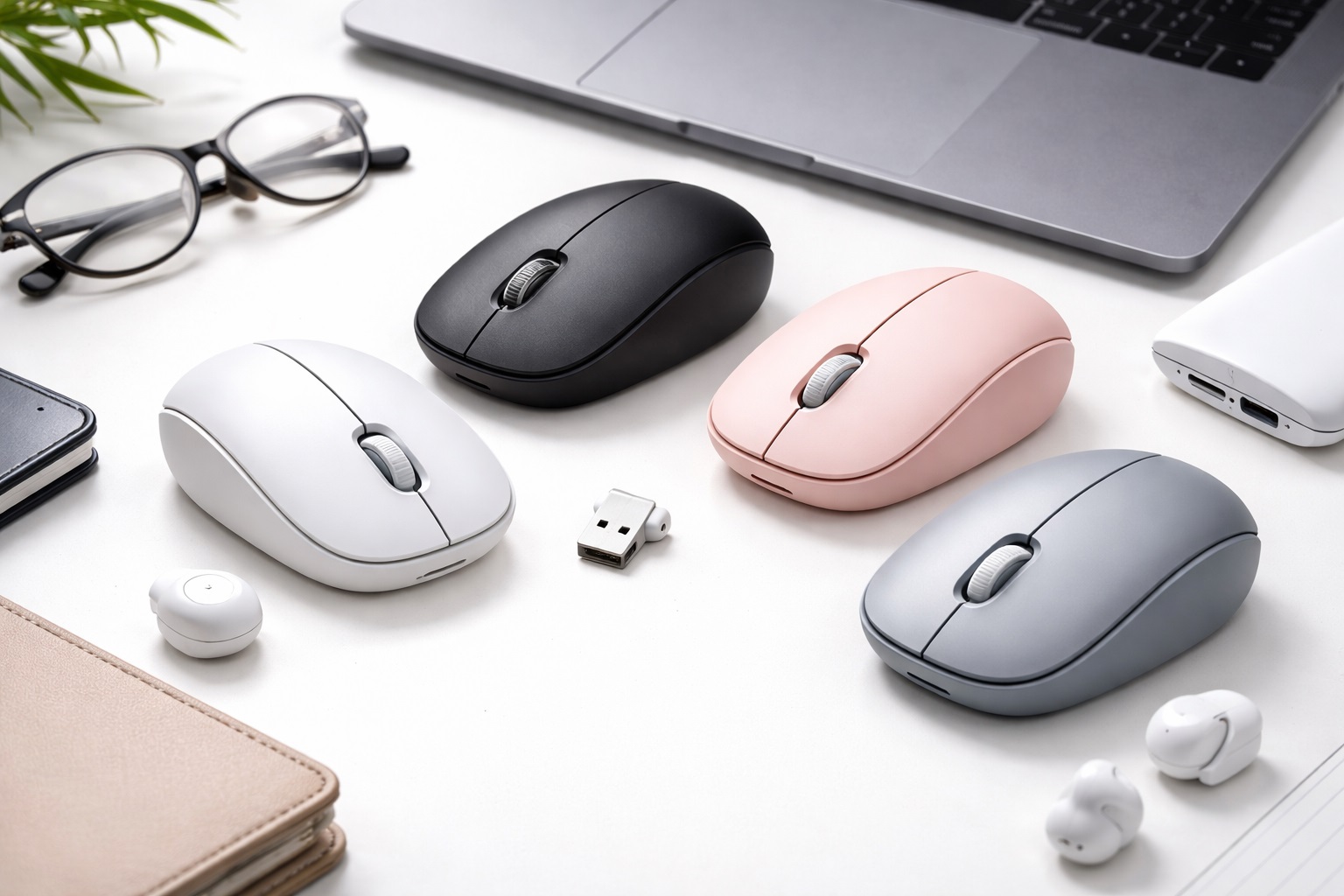
Best Wireless Mouse for Beginners in 2026: Simple, Reliable, and Easy Setup
If you're still using your laptop's trackpad or a tangled wired mouse, you're missing out on the freedom and comfort of going wireless. But for a beginner, the world of "gaming sensors," "DPI settings," and "multi-device pairing" can be overwhelming. The **best wireless mouse for beginners** strips away the complexity. It must be **Easy to Connect** (just plug it in and it works), **Comfortable** (it fits naturally in your hand), and **Long-Lasting** (so you don't have to worry about the battery every week).
We've hand-picked the most user-friendly wireless mice of 2026. These models were selected for their "hassle-free" connection, extremely long battery lives, and trusted brand reputations. Whether you're a student, a senior, or just someone looking for a better way to browse the internet and work, these picks are the perfect entry point. No technical degree required—just plug, click, and enjoy.
Top 8 Best Beginner-Friendly Wireless Mice (Detailed Reviews)
1. Logitech M185 – The Ultimate Beginner Choice
The Logitech M185 is arguably the most popular wireless mouse in the world for a reason: it just works. It comes with a tiny USB receiver that you plug into your computer. The second you plug it in, the mouse is ready to go—no software to install, no buttons to pair. It has a contoured shape that fits both left and right hands. Its biggest advantage is the battery life—a single AA battery will last for a staggering **12 months**. It’s the definition of "set it and forget it."
- Pros: Easiest setup in the world, 12-month battery life, works with Windows and Mac, very affordable.
- Cons: Requires a USB-A port (new MacBooks might need a converter), no extra buttons.
Who should buy this: Anyone who wants a simple, cheap, and reliable mouse with zero complexity.
2. Logitech Pebble 2 M350s – The Modern & Silent Pick
If you prefer a mouse that looks modern and works silently, the Pebble 2 is a fantastic beginner upgrade. It is thin, light, and almost completely silent—perfect for working in a library or a shared living room. Unlike the M185, it uses **Bluetooth**, which means you don't have to plug anything into your laptop at all. It can even connect to your iPad or Tablet! It comes in variety of fun colors and has a very smooth, comfortable feel.
- Pros: No USB plug required (Bluetooth), ultra-quiet clicks, slim and portable, beautiful colors.
- Cons: Flat shape can feel "different" at first, not as ergonomic for 8-hour work days.
Who should buy this: Students and tablet users who want a stylish, quiet, and simple wireless experience.
3. Microsoft Bluetooth Mouse – The Simple Windows Standard
Microsoft builds their mice to be the "default" choice for Windows users. This model is compact, lightweight, and features a very accurate tracking sensor that works on most surfaces. It features a dedicated "Wheel Button" that behaves like a standard click. For a beginner, its best feature is how easily it "pairs" with Windows 10/11—your computer will literally pop up a message saying "A mouse is nearby, want to connect?" It’s that easy.
- Pros: Seamless Windows pairing, very clean design, 12-month battery life, affordable.
- Cons: Basic functionality, plastic feel.
Who should buy this: Windows laptop users who want a reliable, brand-name mouse for everyday tasks.
4. Rapoo M100 Silent – The Best Budget Cross-Over
Rapoo is a global leader in value electronics. The M100 is great for beginners because it offers **Dual Connection**. You can connect it via the included USB plug OR via Bluetooth. This means if you lose the small USB plug, the mouse isn't broken—you can just switch to Bluetooth! It features silent buttons and a compact, symmetrical design that is great for smaller hands. For under $20, it offers features usually found in $40 mice.
- Pros: Two ways to connect (USB + Bluetooth), silent clicks, very affordable, durable.
- Cons: The battery door can be a bit stiff, the brand is less famous than Logitech.
Who should buy this: Budget-conscious beginners who want a "fail-safe" mouse they can't easily break or lose.
5. Kensington Pro Fit Ergo Wireless – The Healthy Starter
If you're a beginner who is starting a full-time office job, you should start with healthy habits. The Kensington Pro Fit is an "Ergonomic" mouse, meaning it's shaped to fit the natural curve of your hand. It prevents "Wrist Strain" before it even starts. For a beginner, it’s great because it’s still simple to use (plug-and-play) but provides much better support than the small, flat mice. It features a built-in "DPI Switch" which allows you to slow down the cursor if it feels too "fast" for you.
- Pros: Superior comfort for long hours, silent clicks, very stable, "Speed Control" button.
- Cons: Larger than most travel mice, requires a USB-A port.
Who should buy this: Writers, office workers, and anyone who plans to use their computer for several hours at a time.
6. HP 280 Silent Wireless Mouse – The Workhorse
HP is a name everyone knows. Their 280 Silent model is a no-nonsense tool. It features a 90% noise reduction on the clicks and a very long 18-month battery life on a single AA. For a beginner, its best feature is the "Contoured Grips" on the sides, which make it much harder to "slip" or lose control of the mouse. It’s a solid, reliable choice for a home office setup.
- Pros: 18-month battery, very quiet, comfortable side grips, trusted brand.
- Cons: Standard features only, a bit bulky.
Who should buy this: Home office users who want a quiet, long-lasting mouse from a brand they trust.
7. TeckNet M002 – The "Extra Feature" Bargain
TeckNet is a massive favorite on online marketplaces because they provide "extra" buttons for a low price. This mouse features two "Side Buttons" that you can use to go "Back" and "Forward" while browsing the internet. For a beginner, this is a "magic" feature that makes using the web much faster. It also has an "Auto-Sleep" feature that turns the mouse off if you forget, saving your battery for months.
- Pros: Includes back/forward buttons, very cheap, auto-sleep battery saving, 4800 DPI (very accurate).
- Cons: No Bluetooth (USB only), the name is less prestigious.
Who should buy this: Users who want to browse the web faster and want a lot of features for under $15.
8. Amazon Basics Wireless Mouse with Nano Receiver – The Simple Survivor
Sometimes you just want the simplest thing possible. The Amazon Basics mouse is strictly "no-frills." It features three buttons, a scroll wheel, and a USB receiver. It has been tested millions of times and is known for being nearly indestructible. If you drop it, it usually just keeps working. It’s the perfect "first mouse" for a child or a secondary mouse for a spare laptop.
- Pros: Incredibly cheap, very durable, stable connection, easy to replace.
- Cons: Loud "clicky" sound, basic tracking (doesn't work on shiny surfaces).
Who should buy this: As an emergency spare or for someone who just wants the absolute cheapest reliable option.
Buying Guide: A Beginner’s Vocabulary
You don't need to be an expert, but knowing these three things will help you buy the right product:
1. USB vs. Bluetooth: Which is easier?
* **USB (Nano Receiver):** This is the "Easiest." You plug a tiny metal piece into your computer, and the mouse works instantly. You never have to "pair" it. * **Bluetooth:** This is the "Cleanest." You don't have to plug anything in, but you have to go into your computer's "Settings" once at the beginning to "Connect" the mouse. Bluetooth is best for new MacBooks and iPads.
2. DPI: How "Fast" is the cursor?
DPI stands for "Dots Per Inch." As a beginner, if the mouse cursor feels like it's jumping around too fast, you want a lower DPI (around 800-1000). If you have a very large screen, you want a higher DPI (around 1600+). Many beginner mice have a **"DPI Button"** on top that lets you change this with one click!
3. Optical vs. Laser (The "Surface" Test)
Most beginner mice are **"Optical"** (they have a red light on the bottom). These work great on mousepads and wood desks. However, they **do not work on glass** or shiny tables. If you plan to work on a glass table, you must look for a **"Laser" or "Blue Track"** mouse, like the Microsoft Bluetooth Mouse.
FAQ: Expert Tips for New Mouse Users
Why is my mouse "stuttering" or skipping?
This is almost always a battery issue! When the battery is low, the mouse will "save power" by skipping movements. Try a fresh battery first. If that doesn't work, ensure there is no dust or hair covering the small "eye" (sensor) on the bottom of the mouse.
Do I need a mousepad?
For a beginner, **Yes.** A $5 mousepad provides a consistent surface for the sensor. It makes clicking more accurate and prevents your mouse from scratching your desk (or the desk from scratching your mouse!).
How do I turn the mouse off?
Almost every wireless mouse has a small "On/Off" switch on the bottom. While many have "Auto-Sleep," it is always best to switch the mouse **OFF** at the end of the day or when you're putting it in a bag to ensure the battery lasts as long as possible.
Will a wireless mouse work with my Mac and my PC?
Yes. USB and Bluetooth are universal standards. A Logitech mouse will work perfectly on a Windows Dell laptop, a MacBook Air, and even a Chromebook.
What do the side buttons do?
Most mice with extra buttons use them for "Back" and "Forward" in your web browser. This allows you to go back to the previous website you were on without moving the cursor to the top of the screen. It is a huge time-saver!
Final Verdict: The Best Winner for Beginners
- The Best Overall: The Logitech M185 for its legendary 12-month battery and "just works" setup.
- The Stylish Upgrade: The Logitech Pebble 2 for those who want quiet clicks and Bluetooth.
- The Healthier Choice: The Kensington Pro Fit Ergo for anyone working more than 4 hours a day.
Going wireless is the best gift you can give your computer setup. By choosing a simple, reliable mouse, you're making your daily tasks faster, more comfortable, and much more enjoyable. Happy clicking!