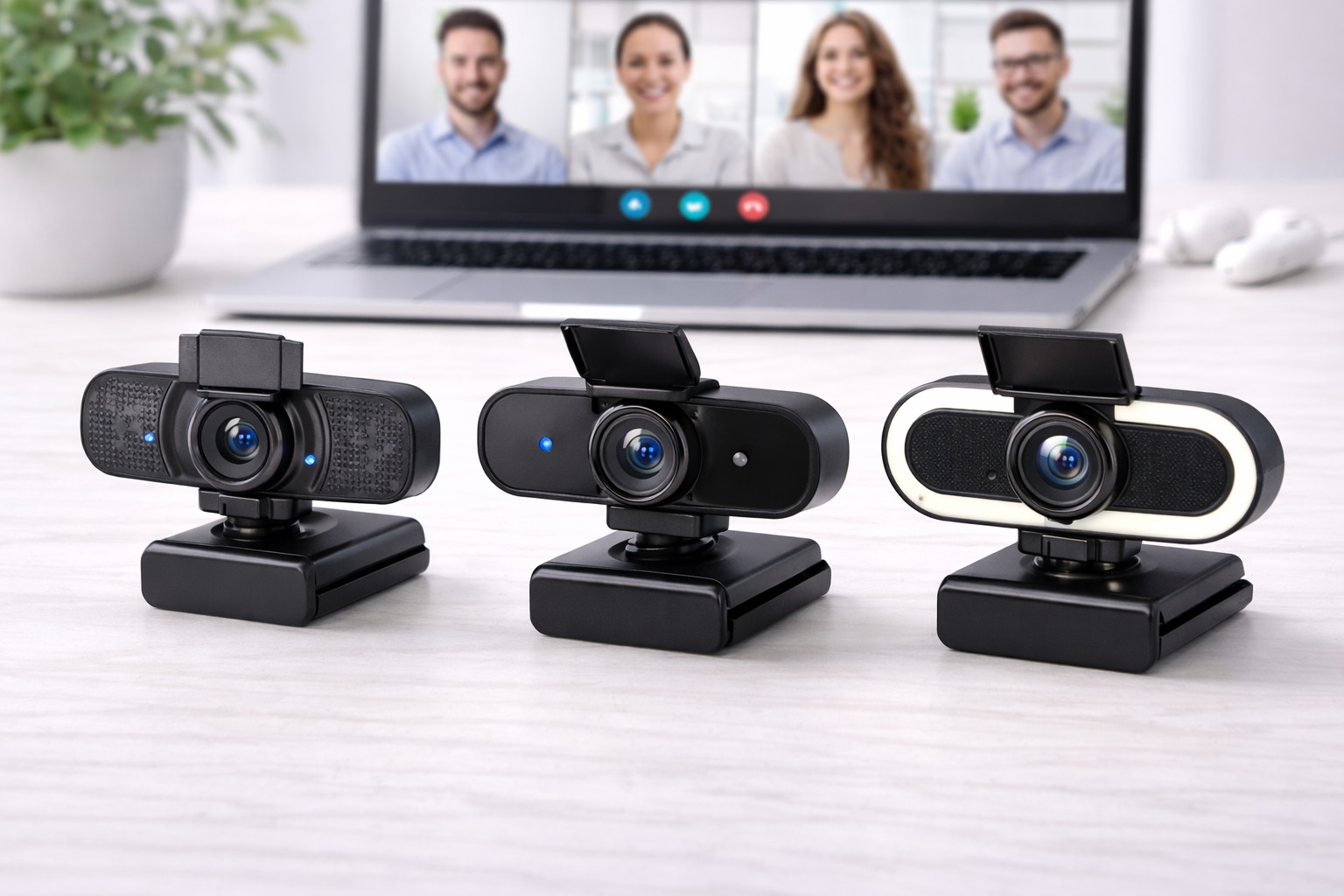
Best Webcam for Calls in 2026: Look Professional in Every Meeting
In the digital-first professional landscape of 2026, your "virtual image" is just as important as your physical presence. Whether you're pitching a new client, interviewing for a job, or collaborating with a global team, the built-in camera on your laptop often makes you look grainy, dark, and "unprofessional." The **best webcam for calls** is designed to solve these specific problems: it provides **Natural Skin Tone rendering** (so you don't look gray), **Advanced Auto-Focus** (so you stay sharp if you move), and **Noise-Canceling Dual Microphones** (so your voice is as clear as your video).
We've tested the latest cameras specifically for their "Professional Performance" in business apps like Zoom, Microsoft Teams, and Google Meet. We looked for models with **Flicker-Free technology** (to prevent the "strobe" effect on screens) and **AI-Enhanced Low-Light Correction** (for those dark office corners). Whether you're an executive, a salesperson, or a remote manager, these are the top-rated picks for projecting a reliable and powerful image online.
Top 8 Best Webcams for Professional Calls (Detailed Reviews)
1. Logitech Brio 500 – The All-Rounder's Professional Choice
The Logitech Brio 500 is arguably the best "Business" camera of 2026. It features 1080p resolution with "RightLight 4" technology, which automatically adjusts your exposure to ensure you look bright even if you have a bright window behind you. Its most unique feature is **"Show Mode,"** which allows you to tilt the camera down to show your physical desk (like a notebook) during a call without the camera falling off your monitor. It features dual beamforming microphones that pick up your voice perfectly while muting background fan noise.
- Pros: Best-in-class auto-light correction, "Show Mode" for desk-sharing, stylish cylindrical design, built-in shutter.
- Cons: Fixed USB-C cable (not removable), 1080p only (no 4K).
Who should buy this: Professional remote workers and consultants who want a "set it and forget it" tool that always looks perfect.
2. Dell UltraSharp 4K Webcam – The Executive's Image
Dell’s UltraSharp 4K is for those who refuse to compromise on quality for their client calls. It features a Sony STARVIS sensor—the same type used in highnd security cameras—providing incredible detail even in bad office lighting. It features AI **"Auto-Framing"** that keeps you centered in the frame even if you lean back or move in your chair. Its best "Meeting" feature is the **Magnetic Mount**, which allows you to snap the camera off your monitor in one second for privacy or storage. It’s finished in a matte aluminum that look extremely highnd on camera.
- Pros: Stunning 4K quality, AI auto-framing keeps you centered, magnetic quick-detach, premium build.
- Cons: No internal microphone (you must use your laptop mic or a headset), most expensive on our list.
Who should buy this: Executives, doctors, and highnd lawyers who need the absolute sharpest, most professional image possible.
3. Anker PowerConf C200 – The Best for Messy Rooms
Anker’s C200 is a tiny "Cube" that provides highnd **2K resolution**. For a professional caller, its best feature is the **Adjustable Field of View (FOV)**. You can set the FOV to 65 degrees (Narrow), which crops out the laundry, clutter, or bed in the background of your apartment, leaving only you and a professional wall visible. It features dual microphones that use AI to "Mute" the sound of typing or coffee grinders in your room. It is extremely small and features a physical privacy shutter.
- Pros: Sharp 2K resolution, adjustable "Hide-the-Background" FOV, very small footprint, excellent mics.
- Cons: Plastic build, 2K is limited to 30fps.
Who should buy this: Professionals in small apartments or dorm rooms who want a "Cropped" and tidy background.
4. Microsoft Modern Webcam – The Certified Teams Tool
Microsoft builds their "Modern" webcam to be the perfect companion for Windows users. It is "Certified for Microsoft Teams," meaning it has been tested to work flawlessly with its buttons and background features. It is about the size of a box of matches and weighs almost nothing. It provides 1080p HDR video, which prevents you from looking "washed out" if the sun is bright. For a business caller, its best feature is the **Integrated Status Light**—a small white light that glows clearly when you are "On-Air."
- Pros: Very small and light, "Certified for Teams," HDR video balancing, highnd privacy shutter.
- Cons: Fixed field of view (78 degrees), basic microphones.
Who should buy this: Corporate travelers and IT professionals who want a simple, reputable upgrade for their Surface or laptop.
5. Insta360 Link – The AI "Video Pro"
The Insta360 Link is a miracle of miniature engineering. It is an AI-powered 4K webcam on a **3-axis Gimbal**. For professional calls, this is incredible because the camera "follows" you as you move around—perfect if you are a teacher at a whiteboard or a presenter. It features "Gesture Control," allowing you to zoom in and out by just holding up a hand. It folds into a tiny cube when not in use. It providing a "Professional Producer" look from a device that fits in your hand.
- Pros: 4K resolution, AI tracking, folds for protection, excellent gesture and "Whiteboard" modes.
- Cons: High price tag, the gimbal is a "moving part" that can be sensitive.
Who should buy this: Presenters, lecturers, and creative directors who move while they talk and need to present physical items.
6. Razer Kiyo Pro – The Low-Light Specialist
One of the biggest problems with office calls is "Dark Room Grain." The Razer Kiyo Pro features an **Adaptive Light Sensor** that is significantly larger than standard webcams. It can record 1080p at 60fps even in very dim environments without needing a separate ring light. It features a rugged, "Lensnd" design that is very high-quality and includes a **Removable USB-C Cable**. It features high-quality HDR to prevent "blowing out" the image if there’s a bright light source beside you.
- Pros: Best-in-class low light (no extra lamp needed), 60fps for smooth motion, removable cable, wide field of view.
- Cons: Heavier and larger than other "business" picks, higher price.
Who should buy this: Video editors and professionals who often work late at night or in dark office setups.
7. NexiGo N930P with Remote – The Presenter's Hero
What makes the NexiGo unique for business calls is the **included Remote Control**. This allows you to Zoom, Pan, and adjust the brightness during a meeting without having to reach for the camera. This is an incredible tool for managers who stand up to present or teachers. It provides 1080p video, dual stereo microphones, and a 90-degree wide field of view. For around $50, it is one of the most featured-packed webcams available for under $100.
- Pros: Remote control is extremely useful for presenters, 1080p quality is stable, very affordable.
- Cons: Plastic look, the mount can be less stable on very thin monitors.
Who should buy this: Managers, teachers, and anyone who needs to "adjust their view" during a client presentation.
8. Logitech C920e HD Pro – The Industry Standard
The C920 series has been the world's most popular webcam for years. The "e" (Business) model is specifically tuned for professional calls. It features a **Fixed Field of View (78 degrees)**, meaning you don't have to mess with settings to hide your room—it’s already cropped perfectly for one person. It uses a **Glass Lens** for superior clarity and features dual stereo microphones. It is "Certified for Business," ensuring it works with Zoom, Teams, and WebEx with zero drivers or setup.
- Pros: Most reliable brand, incredible durability, glass lens for clarity, no software needed.
- Cons: Old-school design, strictly 1080p at 30fps.
Who should buy this: Corporate employees and students who want a "set it and forget it" tool that is 100% reliable.
Buying Guide: Decoding "Professional" Video
Successful professional calls are about **Clarity** and **Focus**. Here are the four things to check before you buy:
1. Resolution vs. Internet Speed
In 2026, 4K is impressive, but it requires at least **20Mbps upload speed**. If your internet is slow, a 4K camera will look "laggy" or "compressed." For most calls, a high-quality **1080p or 2K camera** with great "Light Correction" is better than a "raw" 4K sensor without smart adjustment.
2. "Light Correction" (The Real Secret)
You probably don't have professional studio lights. Look for webcams with **"Auto-Light Correction" or HDR**. Technology like Logitech’s "RightLight" or Dell’s STARVIS sensor ensures that even if you have one bright lamp, the camera will keep your face looking natural and bright automatically.
3. Microphone Quality
If you don't use a headset, your webcam's microphones are your only voice. Look for **"Dual Stereo" or "Beamforming"** mics. These are designed to pick up your voice from the center while "muting" the typing sounds or street noise from the sides. Avoid "Mono" microphones found in the cheapest budget cameras.
4. "Physical Privacy Shutter"
In a professional setting, a privacy leak is a disaster. A **Physical** shutter (a sliding door or a cap) is much safer than just trusting software. When the door is closed, it is physically impossible for anyone to see you. All highnd cameras from Logitech, Dell, and Anker include this feature.
FAQ: Expert Video Call Advice
How do I stop my webcam from "glaring" in a bright room?
Never sit with a **window directly behind you**. This makes you look like a "Shadow." Try to face the window so the light hits your face. If you can't move, use a webcam with **HDR (High Dynamic Range)** which helps balance the bright background and your face.
Why do I look "Blue" or "Gray" on camera?
This is usually due to "White Balance." If your desk is lit only by your monitor, it is a very "Cool" blue light. To fix this, point a **Warm Desk Lamp (3000K)** at your face or use a webcam with "Natural Skin Tone" software like Logitech or Logitech Litra Glow.
Is a 4K webcam worth the extra $100?
Only if you are a senior executive or a content creator. Zoom and Teams usually limit your video to 1080p anyway. A 4K camera is "Down-sampled" to look like high-quality 1080p. Unless you are recording videos for social media, a highnd 1080p or 2K camera is the "Sweet Spot" for value.
What do I do if my webcam doesn't fit on my thin monitor?
Most webcams have a "Universal Mount." If it’s loose, use a small piece of **"Reusable Museum Gel"** or "Blu-Tack" under the mount. This creates a secure, non-permanent bond that keeps the camera perfectly level even if you move your desk.
Is it safe to leave the webcam plugged in?
Yes, but always use the **Privacy Shutter**. Also, remember that some webcams pull "Wait-Power" from your laptop even when not in use. If you are on battery power, it is best to unplug the webcam once the meeting is done to save your battery life.
Final Verdict: The Winner for Your Career
- The Business Standard: The Logitech Brio 500 for its perfect mix of image quality, software, and "Show Mode."
- The Professional Edge: The Dell UltraSharp 4K for its executive-level sharpness and magnetic privacy.
- The Value Pro: The Anker PowerConf C200 for its 2K quality and "Hide-the-Background" FOV settings.
Your digital image is your professional reputation in 2026. By choosing a high-quality webcam designed for calls, you're making your communication clearer, your presence more powerful, and your work-life more efficient. Present with power!